Guides / Reference
Pads: edit, add, draw
You can change a footprint’s pads in place: resize a vendor’s too-small pads, add a hand-solder tab, or draw a new pad as a shape.
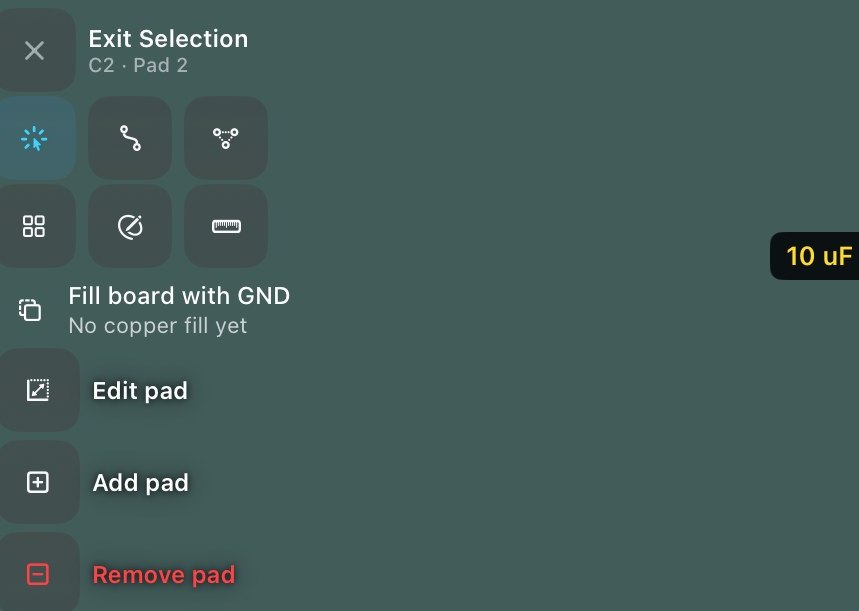
- Edit a pad
Select it (part first, then pad) ▸ Edit pad: size, shape, layers and drill. The selection card confirms which pad and net you’re on before you touch anything.
- Add or remove
Add pad and Remove pad sit beside it. Any number of added pads export correctly, this used to break at the second pad, and the fix is guarded by tests.
- Make Pad, draw it instead
In Draw, sketch a rectangle or circle on a part and promote it with Make pad. It becomes real copper, selected on the spot so the pad editor is the natural next tap.
Limitation: polygon and custom-outline pads can be read from imported boards but not edited. The app tells you this when you try, rather than approximating your shape.